
diff options
Diffstat (limited to 'docs/dev/debugging.md')
| -rw-r--r-- | docs/dev/debugging.md | 64 |
1 files changed, 43 insertions, 21 deletions
diff --git a/docs/dev/debugging.md b/docs/dev/debugging.md index 1ccf4dca244..e6b0821564d 100644 --- a/docs/dev/debugging.md +++ b/docs/dev/debugging.md @@ -1,44 +1,66 @@ -# Debugging vs Code plugin and the Language Server +# Debugging VSCode plugin and the language server -**NOTE:** the information here is mostly obsolete +## Prerequisites -Install [LLDB](https://lldb.llvm.org/) and the [LLDB Extension](https://marketplace.visualstudio.com/items?itemName=vadimcn.vscode-lldb). +- Install [LLDB](https://lldb.llvm.org/) and the [LLDB Extension](https://marketplace.visualstudio.com/items?itemName=vadimcn.vscode-lldb). +- Open the root folder in VSCode. Here you can access the preconfigured debug setups. -Checkout rust rust-analyzer and open it in vscode. + <img height=150px src="https://user-images.githubusercontent.com/36276403/74611090-92ec5380-5101-11ea-8a41-598f51f3f3e3.png" alt="Debug options view"> + +- Install all TypeScript dependencies + ```bash + cd editors/code + npm install + ``` + +## Common knowledge + +* All debug configurations open a new `[Extension Development Host]` VSCode instance +where **only** the `rust-analyzer` extension being debugged is enabled. +* To activate the extension you need to open any Rust project folder in `[Extension Development Host]`. -``` -$ git clone https://github.com/rust-analyzer/rust-analyzer.git --depth 1 -$ cd rust-analyzer -$ code . -``` -- To attach to the `lsp server` in linux you'll have to run: +## Debug TypeScript VSCode extension - `echo 0 | sudo tee /proc/sys/kernel/yama/ptrace_scope` +- `Run Extension` - runs the extension with the globally installed `ra_lsp_server` binary. +- `Run Extension (Dev Server)` - runs extension with the locally built LSP server (`target/debug/ra_lsp_server`). + +TypeScript debugging is configured to watch your source edits and recompile. +To apply changes to an already running debug process press <kbd>Ctrl+Shift+P</kbd> and run the following command in your `[Extension Development Host]` + +``` +> Developer: Reload Window +``` - This enables ptrace on non forked processes +## Debug Rust LSP server -- Ensure the dependencies for the extension are installed, run the `npm: install - editors/code` task in vscode. +- When attaching a debugger to an already running `rust-analyzer` server on Linux you might need to enable `ptrace` for unrelated processes by running: -- Launch the `Debug Extension`, this will build the extension and the `lsp server`. + ``` + echo 0 | sudo tee /proc/sys/kernel/yama/ptrace_scope + ``` -- A new instance of vscode with `[Extension Development Host]` in the title. - Don't worry about disabling `rls` all other extensions will be disabled but this one. +- By default, the LSP server is built without debug information. To enable it, you'll need to change `Cargo.toml`: + ```toml + [profile.dev] + debug = 2 + ``` -- In the new vscode instance open a rust project, and navigate to a rust file +- Select `Run Extension (Dev Server)` to run your locally built `target/debug/ra_lsp_server`. -- In the original vscode start an additional debug session (the three periods in the launch) and select `Debug Lsp Server`. +- In the original VSCode window once again select the `Attach To Server` debug configuration. -- A list of running processes should appear select the `ra_lsp_server` from this repo. +- A list of running processes should appear. Select the `ra_lsp_server` from this repo. - Navigate to `crates/ra_lsp_server/src/main_loop.rs` and add a breakpoint to the `on_task` function. -- Go back to the `[Extension Development Host]` instance and hover over a rust variable and your breakpoint should hit. +- Go back to the `[Extension Development Host]` instance and hover over a Rust variable and your breakpoint should hit. ## Demo -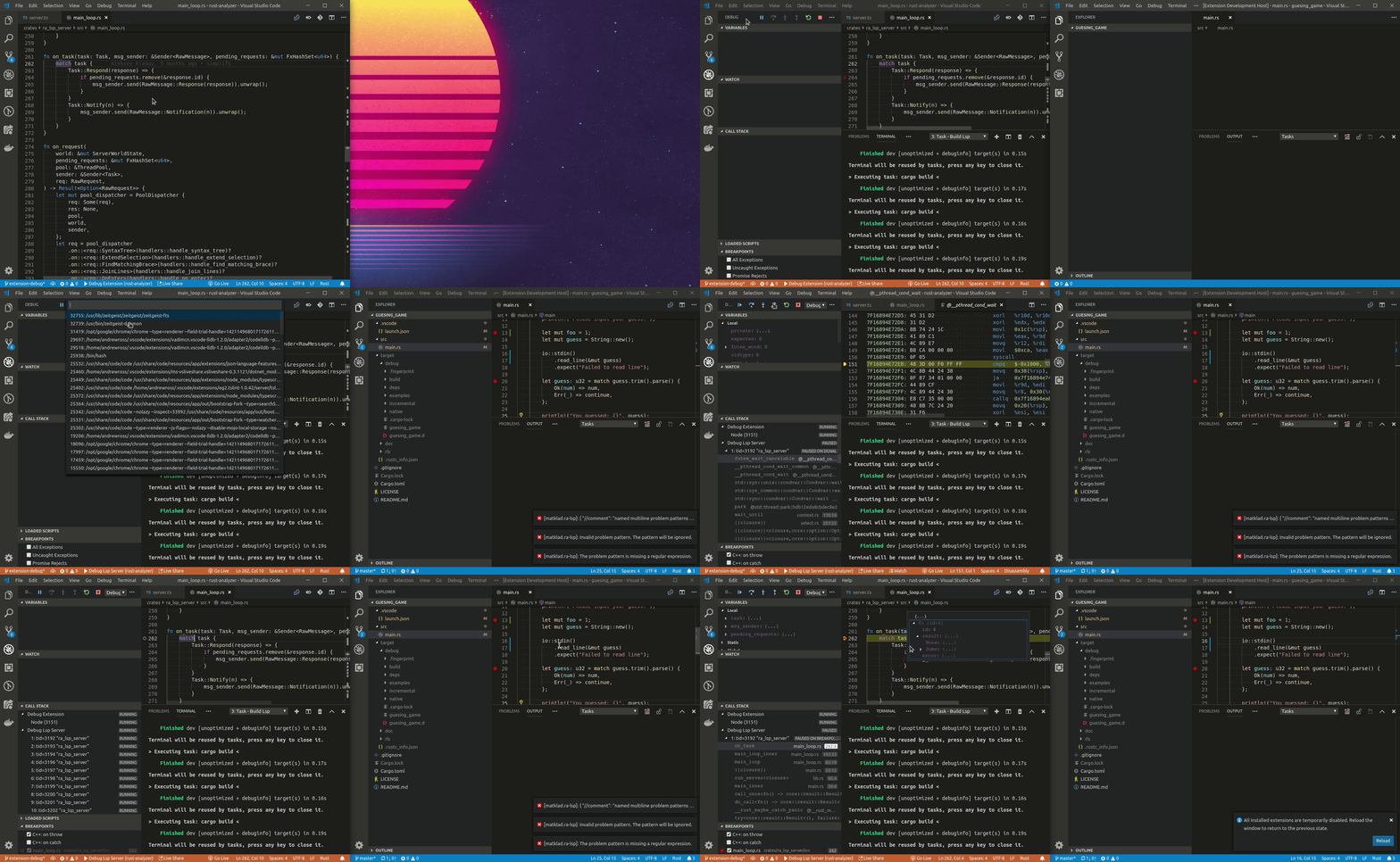 +- [Debugging TypeScript VScode extension](https://www.youtube.com/watch?v=T-hvpK6s4wM). +- [Debugging Rust LSP server](https://www.youtube.com/watch?v=EaNb5rg4E0M). ## Troubleshooting |